3D phone mockup with no upload: keep screenshots on your device
How to make a free 3D phone mockup online without uploading your screenshot—browser WebGL rendering, privacy checklist, and when flat frames are safer for store listings.
By Mewix · October 23, 2026 · 3 min read
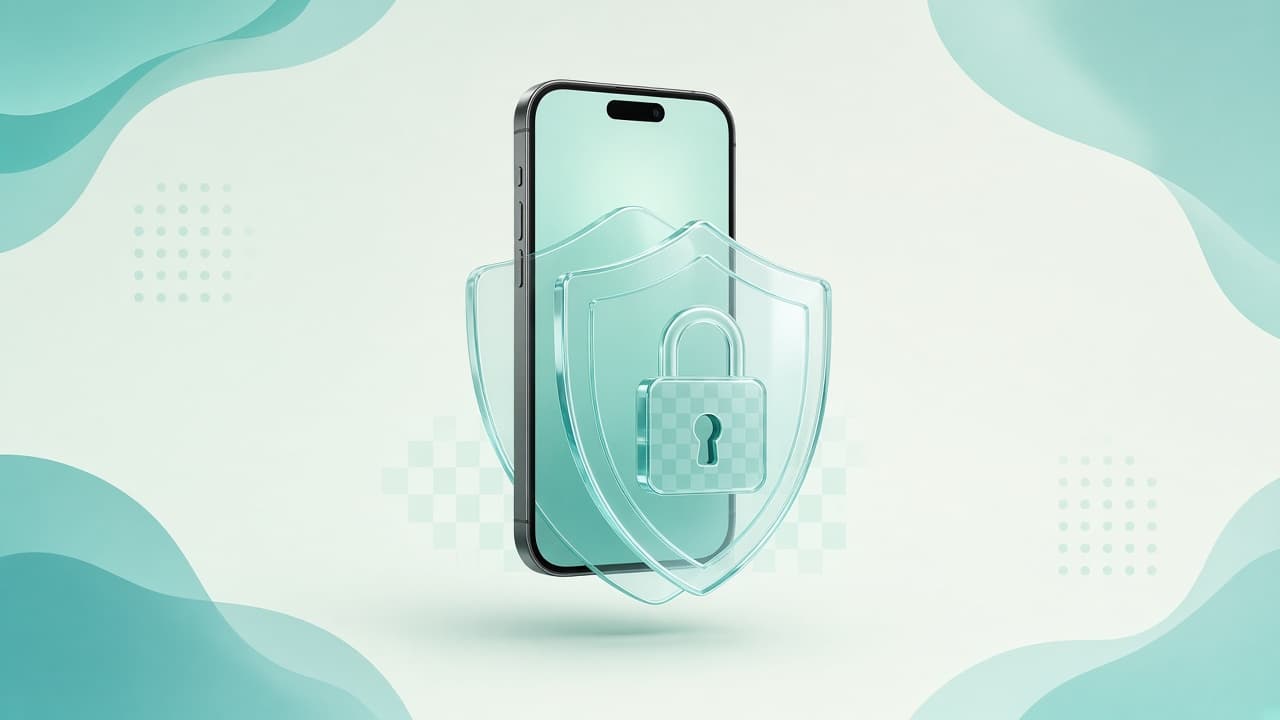
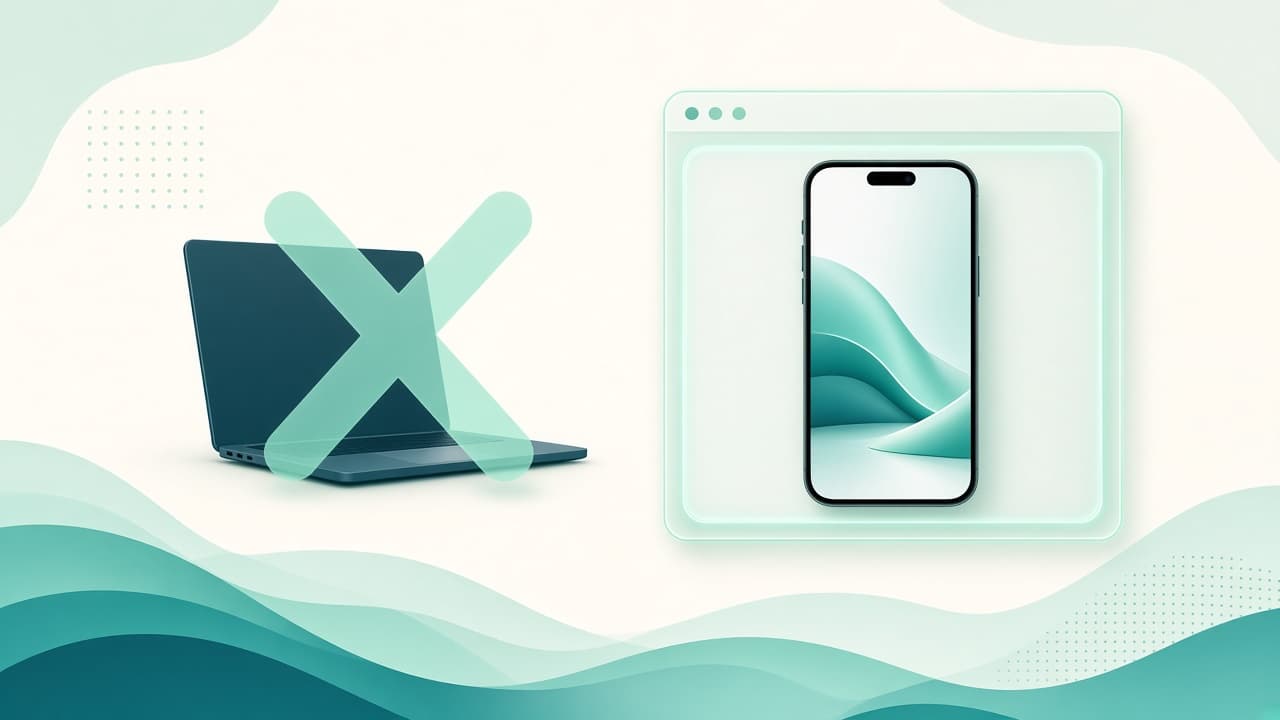
Unreleased UI, client dashboards, and beta builds should not become someone else’s training data or CDN cache just because you needed a fancy phone frame. A 3D phone mockup with no upload means the screenshot is read and rendered in your browser—your file never leaves the machine for the render step.
Mewix’s 3D mockup editor is built that way: WebGL device models and lighting assets load from the site, but your screen art stays local.
Why “no upload” matters for mockups
| Risk if the tool uploads | Who cares |
|---|---|
| Pre-release product leaks | Founders, PMs, agencies under NDA |
| Partner logos / unfinished copy in the shot | Legal and brand |
| Personal data visible in a demo screen | Privacy-conscious teams |
| Competitor can scrape your unreleased flow | Anyone shipping quietly |
Flat frame sites and cloud mockup studios often require an upload so a server can composite the image. That is convenient—and the wrong default for confidential work.
Privacy checklist before you drop a screenshot
- Does the page process locally? Prefer tools that say browser / WebGL / no upload for the core export.
- Can you verify? Open DevTools → Network while you drop a file. You should not see the screenshot POSTed as binary content for the render.
- What still leaves the machine? Analytics page views are normal; file bytes should not be.
- Where does “save project” go? A local
.mewix-style project file on disk is fine; a cloud project library is a different trust model. - Is the free export the real export? Watermarked free tiers sometimes push you to a paid cloud pipeline later.
How the no-upload 3D path works on Mewix
- Open mockups or the editor.
- The browser downloads device meshes and HDRI lighting from Mewix (same as any static asset).
- You choose Pixel 9 Pro XL or Galaxy Book 2 and drop a screenshot.
- The image is textured onto the display in WebGL in your tab.
- You export PNG from the canvas on your device.
Closing the tab discards the in-memory screenshot unless you explicitly saved a local project file. Details on transparent exports: transparent PNG device mockups.
Free 3D mockup online vs private flat frames
| Job | Prefer |
|---|---|
| Landing hero, social launch, press kit | 3D product still (angle + light) |
| Play Store grid where every label must read | Flat frame or raw screenshot |
| NDA / unreleased UI either way | No-upload tool, flat or 3D |
3D does not require upload by definition—but many 3D products still upload. Ask the privacy question separately from the “flat vs 3D” question. More on that trade-off: 3D vs flat frames and the Play Store guide.
Practical tips for private stills
- Crop out real user names, emails, and map pins before you mock up—even locally, screenshots get forwarded in Slack.
- Prefer backdrop None + PNG when the landing page owns the brand color; you reuse one private asset across themes.
- Soft side light looks premium and travels better across brand palettes than extreme colored gels.
Bottom line
“Free 3D mockup online” is incomplete without “no upload.” For Android-oriented stills with local processing, start here: 3D mockup editor.
CTA: Create a private 3D phone mockup—screenshot stays on your device.