GuideColors
Color palette from a photo
Extract a usable color palette from an image, then refine swatches with the picker and palette tools—all in the browser.
September 15, 2026 · 1 min read
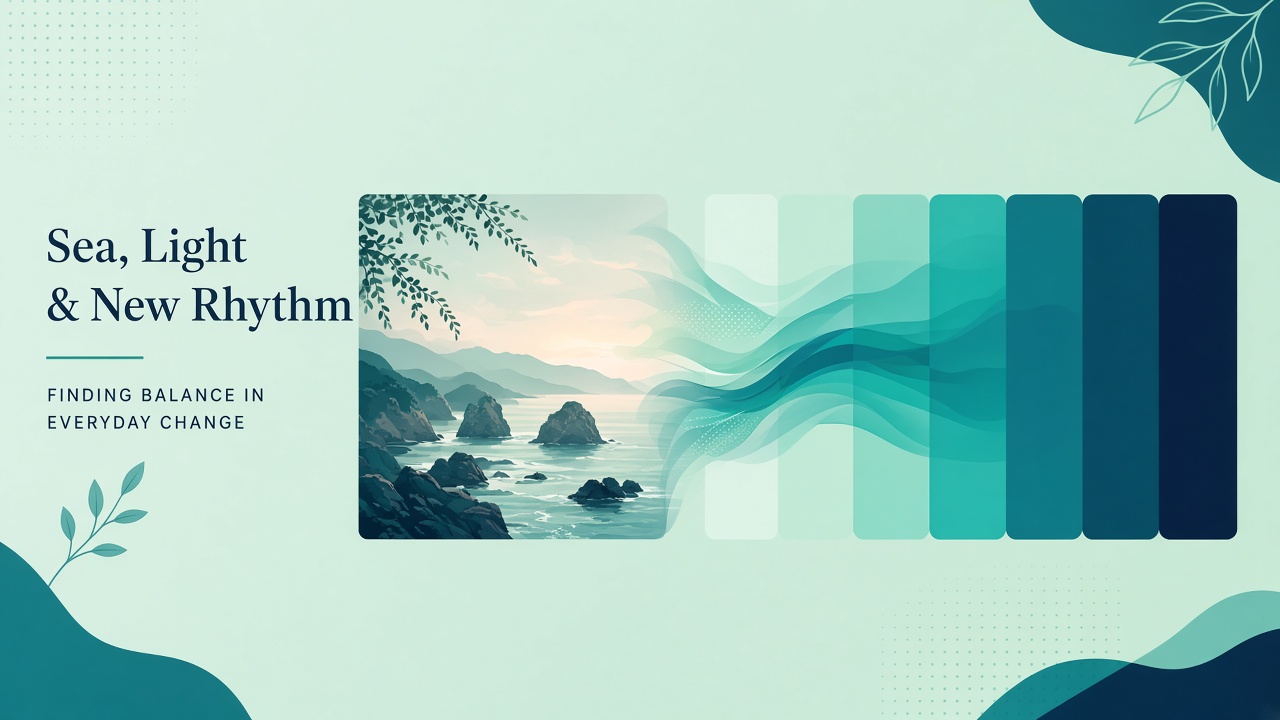
Moodboards start with a photo. Turning that photo into a color palette you can actually ship in CSS is the hard part. Mewix keeps extraction private in the browser.
Workflow
- Open Colors from image.
- Drop a photo, screenshot, or brand still.
- Review the extracted swatches.
- Copy HEX/RGB values into your design tokens.
- Refine individual colors in the color picker or build structured sets with the palette generator.
Tips for cleaner palettes
- Prefer photos with a clear lighting story (one key light) over chaotic collages
- Remove UI chrome from screenshots if you only want brand colors
- Check contrast of text-on-background pairs in the contrast checker before locking tokens
- Limit production palettes to 5–7 core colors; save accents separately
Privacy
Product shots and unreleased campaign art stay on your device during extraction—no upload step for the core tool.
CTA: Extract a palette from a photo, then polish in the picker or palette tool.