GuidePDF
Split a PDF online without uploading
Extract pages or split a PDF into separate files in your browser—private split PDF workflow without sending documents to a server.
October 2, 2026 · 1 min read
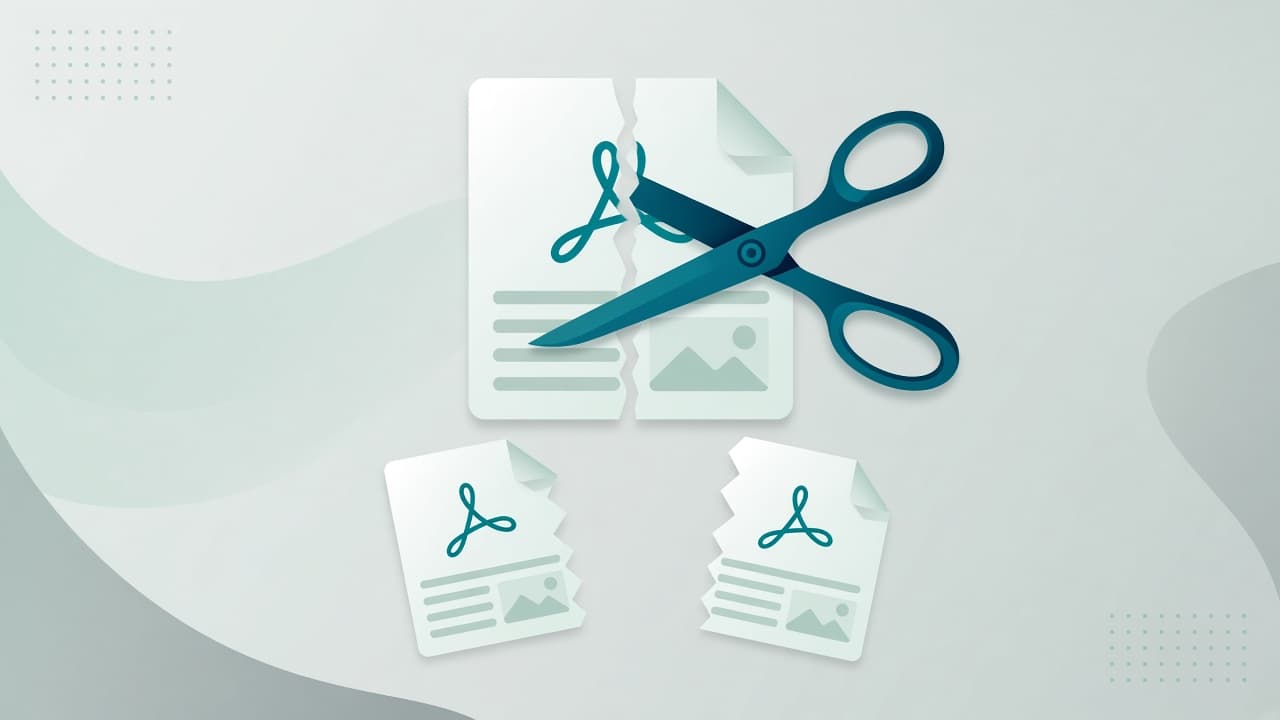
Split PDF means carving one document into smaller files—by range, single pages, or logical sections. Upload-based tools are convenient until the PDF is a contract or ID scan. Mewix splits in the browser instead.
Steps
- Open Split PDF.
- Drop the PDF.
- Choose the pages or ranges to extract.
- Download the resulting file(s).
Need the inverse? Merge PDFs. Need to drop pages without a full split? Try delete pages.
Common reasons to split
- Send only the signed pages of a long pack
- Separate chapters for email size limits
- Archive one invoice from a monthly batch PDF
- Extract a form appendix for a portal that rejects multi-doc uploads
Tips
- Check page numbers in the viewer after split—print dialogs and PDF labels can disagree
- Compress oversized scans with compress PDF after you extract the pages you need
- Keep the original master file; treat splits as exports
Limits
Encrypted PDFs may need the password first. Complex PDF features (forms, attachments, rights management) can behave differently than a simple page extract. Mewix targets the common “give me pages 3–7” job privately.